

Sunday, 2 August 2026, 10:38 PM
Created by: Konstantin Stojanovski
This guide walks a translator through contributing translations from start to finish.
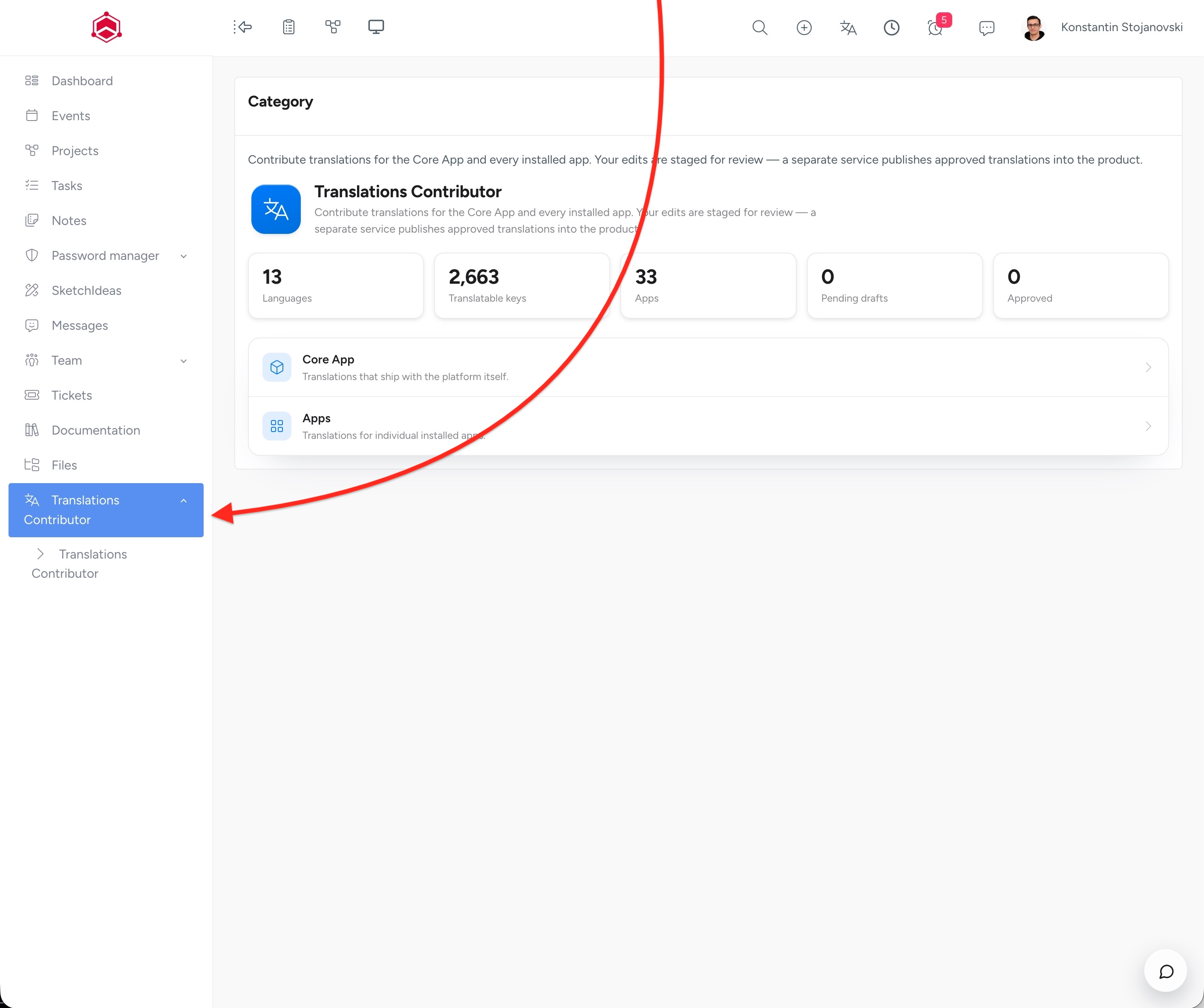
Click Translations Contributor in the left menu. You start on the category screen.
Pick one of two categories by clicking its row:
If you chose Apps, a list of apps appears next. Click the app you want to translate.
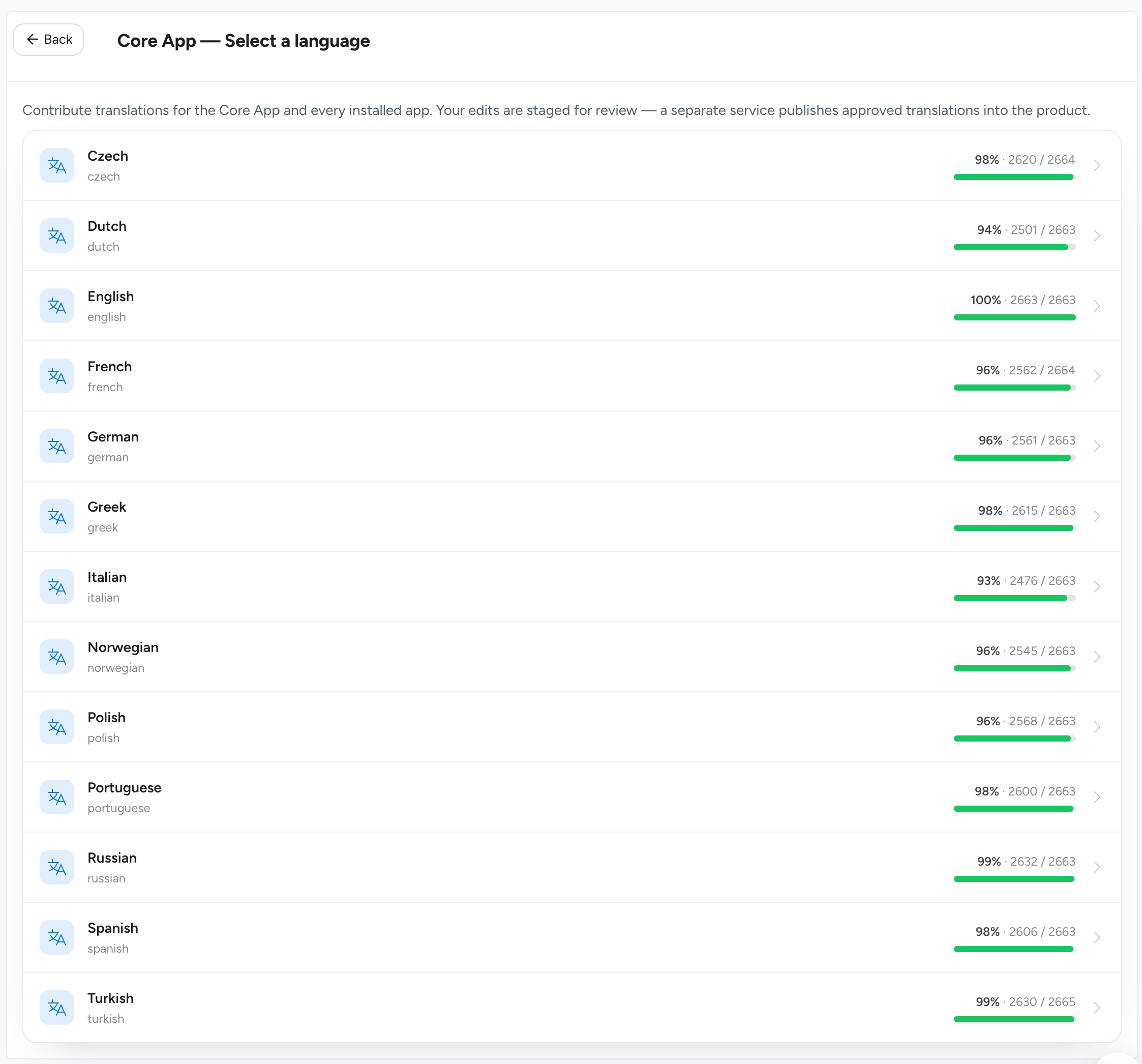
A list of languages appears. Each row shows a progress hint, for example 1840 / 2334 translated, so you can see how much is left. Click the language you want to work on.
The editor opens with one row per text key and three columns:
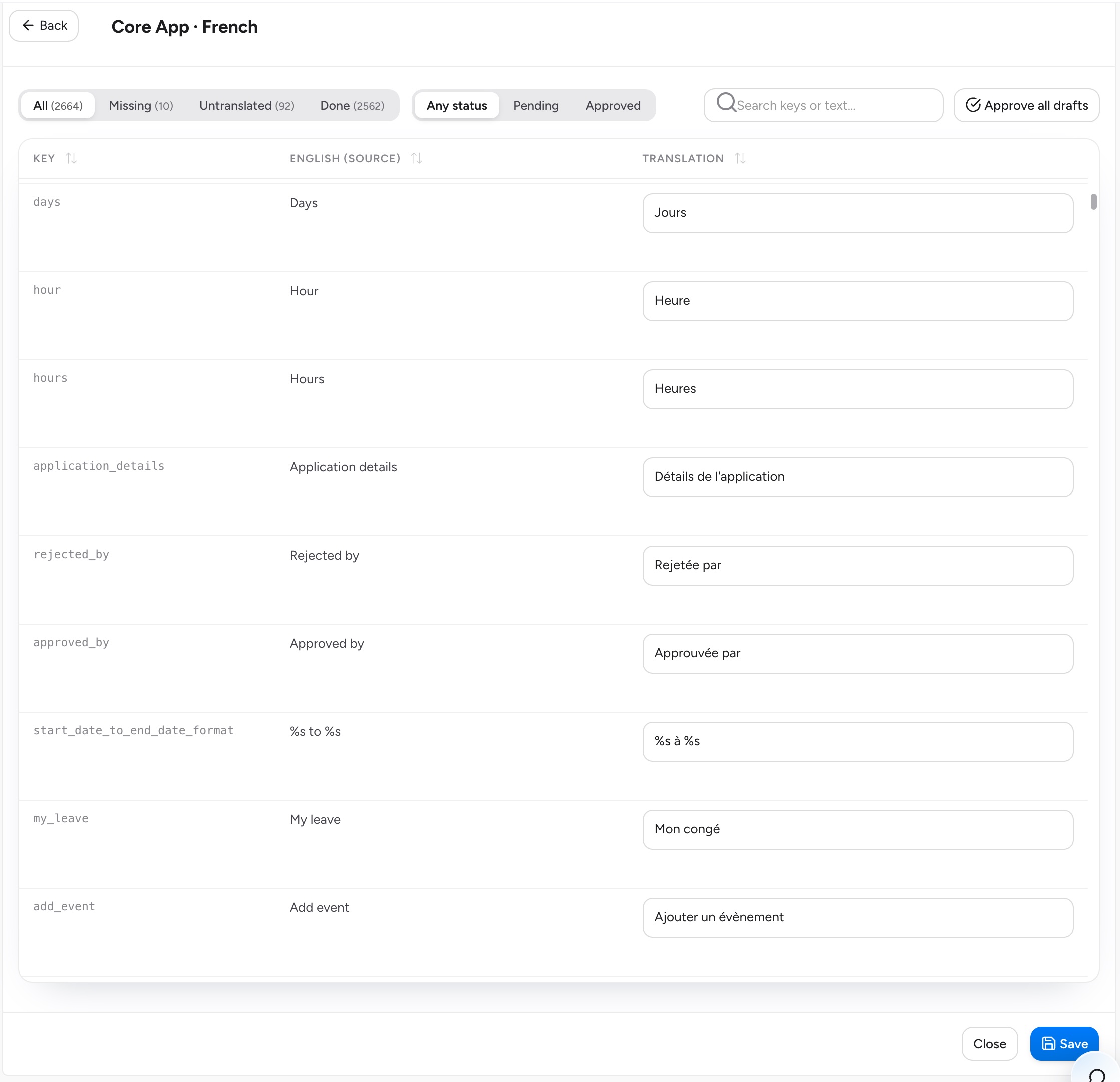
Type your translation directly into the field. Use the filter tabs at the top to focus your work:
Use the search box to jump to a specific key or phrase.
Click Save in the bottom bar. Only the rows you changed are saved, and each is stored as a Draft. You can leave and come back later your drafts are preserved.
If you have the approval permission, click Approve for publishing to mark the language's drafts as approved. Approved translations are then picked up by the publishing service and released into the product.
%s and %d exactly as
they appear in the English source.