

Saturday, 13 June 2026, 10:43 PM
Created by: Konstantin Stojanovski
This guide walks you through Domain Manager from first setup to everyday tasks. If you only need to link your name.com account, see How to Connect name.com.
You need a staff account with Domain Manager permissions. An administrator sets these per role (Domains, DNS, Name Servers, and Settings access).
To sync domains and push DNS changes live, you'll need a registrant connection to your provider (currently name.com). Without one, you can still keep domains and records in NIZU as local-only entries.
Step 1 — Connect your registrar (Registrants)
In the sidebar, open Domain Manager → Registrants.
Click Add Registrant.
Fill in:
Title — a friendly name for the connection (e.g. "name.com — main account").
Provider — name.com.
Environment — Production (live) or Sandbox (for testing).
API Username and API Token — your provider credentials.
Status — Active.
Click Test Connection to confirm the credentials work.
Save.
Full details, including how to get your name.com credentials, are in How to Connect name.com.
Step 2 — Sync your domains
Open Domain Manager → Domains.
The list syncs automatically when it opens — Domain Manager pulls domains from every active registrant that has API credentials. You'll see a short summary (checked, synced, created, errors).
Your domains now appear with their expiry date, status, and a colour badge:
? Expired
? Expiring within your warning window (default 30 days)
? Healthy
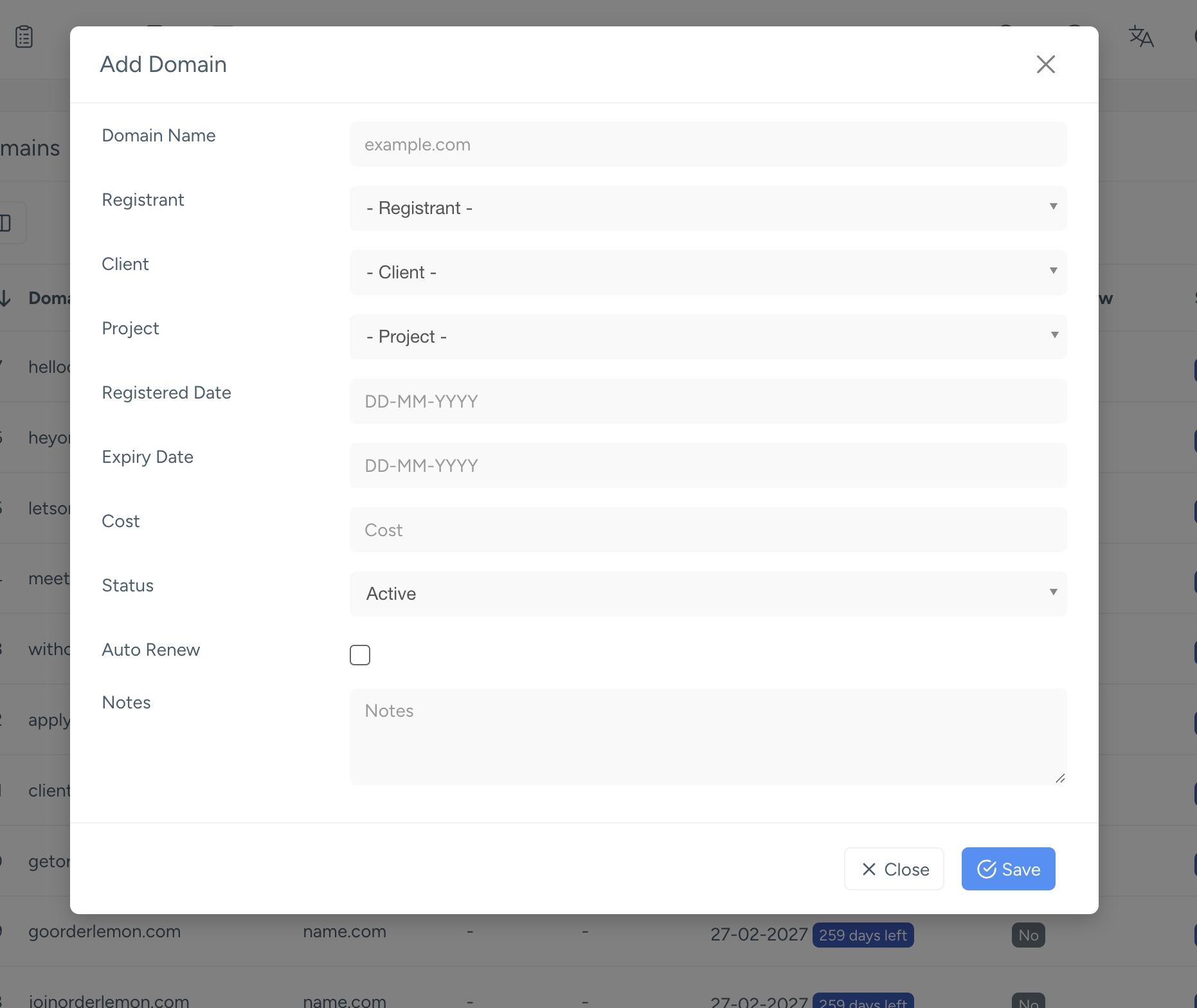
Adding a domain manually
You can also add a domain yourself (useful for domains not at a connected registrar):
Click Add Domain.
Enter the Domain Name, and optionally choose a Registrant, Client, Project, Registered/Expiry dates, Cost, Status, Auto Renew, and Notes.
Save.
Linking a domain to a client or project
Edit any domain and set the Client (and optionally Project). This is what lets the client see the domain in their portal later.
Step 3 — Manage DNS records
DNS uses a pick-a-domain, then manage-its-records flow.
Open Domain Manager → DNS Records.
Choose the domain you want. Its records load, and if the domain is at a connected registrar, the records sync from the provider automatically.
To add a record, click Add Record and fill in:
Record Type — A, AAAA, CNAME, MX, TXT, NS, SRV, or SOA.
Host — the subdomain, or @ for the root domain.
Value — the field label and help text adapt to the type (e.g. IPv4 Address for A, Mail Server for MX, Text Value for TXT).
Priority (MX/SRV), Weight and Port (SRV) appear only when relevant.
TTL — defaults to 3600.
Save. The record is pushed to your registrar first and saved in NIZU only if the provider accepts it — so NIZU always matches what's live.
Use Test Record to verify a record resolves correctly.
Editing and deleting work the same way: changes are sent to the registrar, then reflected in NIZU.
Step 4 — Manage nameservers
Open Domain Manager → Name Servers and choose a domain.
The current nameservers are fetched from the registrar on load.
Use Add, Edit, or Delete to change them. Each change is sent to the registrar.
Nameservers must be valid hostnames.
A domain needs at least two nameservers.
Step 5 — Give a client access to their domains
Open the client's details page and go to the Domain Access tab.
For each client contact, click Edit and choose what they're allowed to do:
DNS Records: view / add / edit / delete
Name Servers: view / add / edit / delete
Other: request a domain transfer code
Save.
The client then sees a Domains section in their portal showing only the domains assigned to them, with the actions you allowed.
Sharing individual DNS records: when editing a DNS record on a domain that belongs to a client, you can tick Shared with Client and pick which client users may see it. This lets you expose only the records you want.
Step 6 — Configure settings (optional)
Open Domain Manager → Settings to set:
Default Provider — used when adding new registrants.
Transfer-Request Ticket Type — the ticket type created when a client requests a transfer code.
Enable Expiry Notifications — email warnings for domains nearing expiry.
Expiry Notice (days) — how many days ahead a domain is flagged as expiring (default 30).
Everyday tasks at a glance