

Thursday, 5 November 2026, 2:28 PM
Created by: Ruvenss G. Wilches
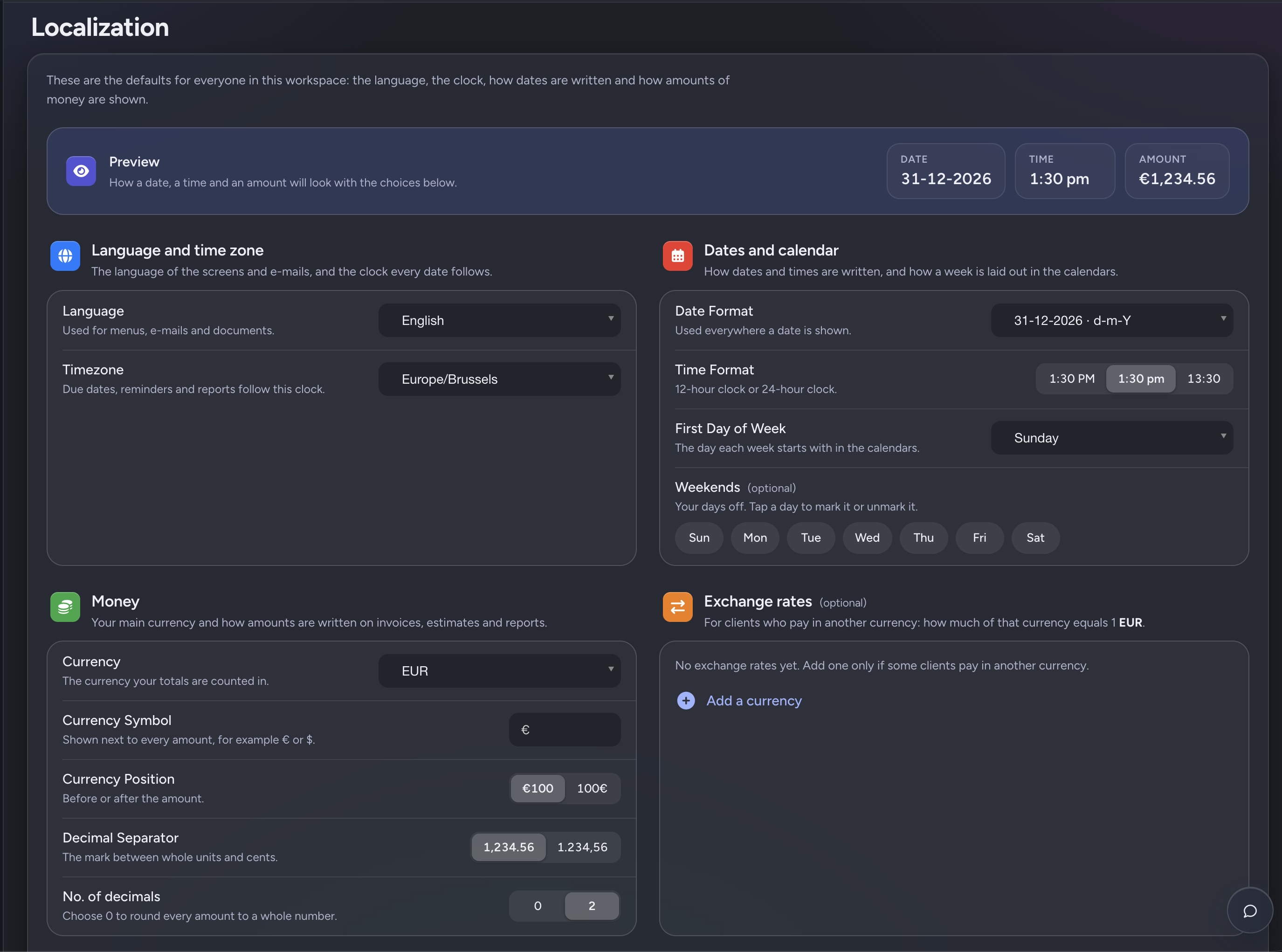
The page has five parts:
The Preview bar at the top shows how a date, a time and an amount will look with the current choices. It updates as you change any setting below, so you can check the result before saving.
Sample | Example shown |
|---|---|
Date | 31-12-2026 |
Time | 1:30 pm |
Amount | €1,234.56 |
These two settings decide which language people see and which clock every date follows.
Setting | What it controls | How to set it | Example |
|---|---|---|---|
Language | Menus, e-mails and documents | Pick from the dropdown | English |
Timezone | Due dates, reminders and reports | Pick from the dropdown | Europe/Brussels |
Tip: set the time zone to where the business operates. A wrong time zone makes reminders arrive early or late and can move due dates near midnight to the wrong day.
These settings decide how dates and times are written and how a week is laid out in the calendars.
Setting | What it controls | Options | Example |
|---|---|---|---|
Date Format | Every date shown in the workspace | Dropdown of formats | 31-12-2026 · d-m-Y |
Time Format | 12-hour or 24-hour clock | 1:30 PM · 1:30 pm · 13:30 | 1:30 pm |
First Day of Week | The day each week starts with in the calendars | Dropdown of weekdays | Sunday |
Weekends (optional) | Your days off | Tap Sun–Sat to mark or unmark each day | — |
Weekends: tap a day to mark it as a day off; tap it again to unmark it. Any combination is allowed, so a business that closes on Sunday and Monday can mark just those two days.
The Money settings set your main currency and how amounts are written on invoices, estimates and reports.
Setting | What it controls | Options | Example |
|---|---|---|---|
Currency | The currency your totals are counted in | Dropdown of currencies | EUR |
Currency Symbol | The sign shown next to every amount | Free text, e.g. € or $ | € |
Currency Position | Symbol before or after the amount | €100 · 100€ | €100 |
Decimal Separator | The mark between whole units and cents | 1,234.56 · 1.234,56 | 1,234.56 |
No. of decimals | How many decimals are shown | 0 · 2 | 2 |
No. of decimals: choose 0 to round every amount to a whole number. Keep 2 for invoices, so cents are not lost on documents customers receive.
Add exchange rates only if some clients pay in a currency other than your main one. Each rate says how much of that currency equals 1 unit of your main currency (1 EUR in this workspace).
To add a rate:
When no rates exist, the section shows “No exchange rates yet.” Review the rates regularly to keep invoice amounts accurate.
For a Belgian business, these values match local conventions (24-hour clock, weeks starting Monday, comma for cents).
Setting | Recommended value | Preview result |
|---|---|---|
Language | Dutch, French or English, per team | — |
Timezone | Europe/Brussels | — |
Date Format | d-m-Y | 31-12-2026 |
Time Format | 13:30 | 13:30 |
First Day of Week | Monday | — |
Weekends | Sat, Sun | — |
Currency | EUR | — |
Currency Symbol | € | — |
Currency Position | €100 or 100€ | €1.234,56 or 1.234,56€ |
Decimal Separator | 1.234,56 | 1.234,56 |
No. of decimals | 2 | — |