

Monday, 29 December 2025, 5:09 PM
Created by: Ruvenss G. Wilches
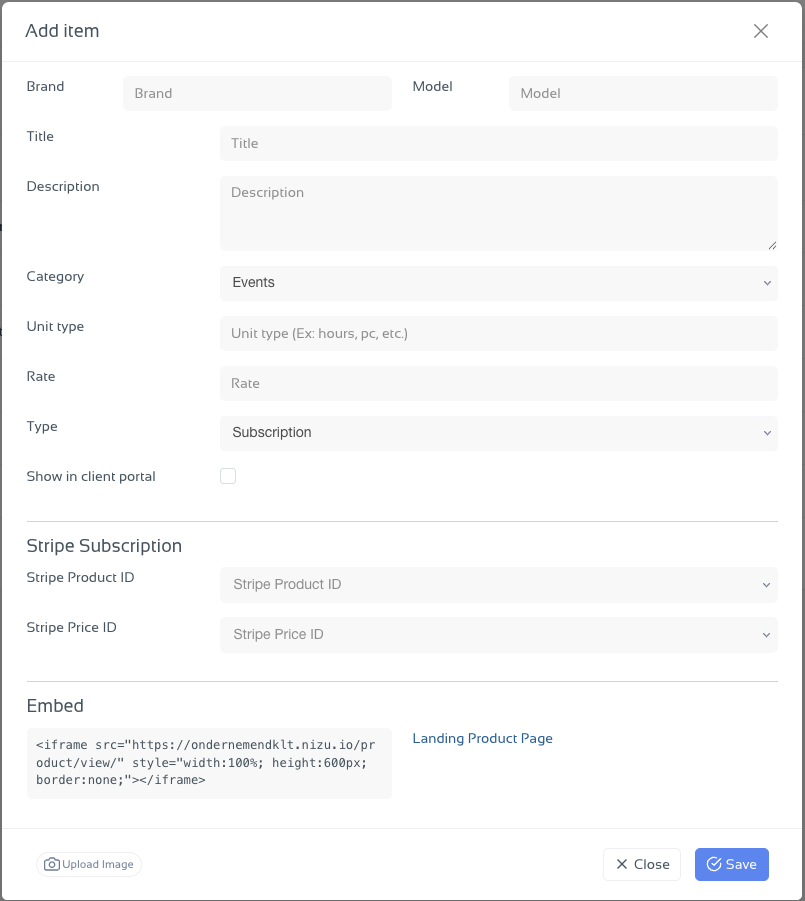
From your NIZU Workspace:
Go to your Store / Items section
Click Add item
This opens the product creation form.
Complete the following fields:
Brand: Optional internal reference (e.g. company or service brand)
Model: Optional identifier for your subscription
Title: Name of the subscription (this is visible to clients)
Description: Clearly explain what the subscription includes
Category: Select the appropriate category (e.g. Events, Services)
Unit type: Define how it’s measured (e.g. month, seat, license)
Rate: Price of the subscription
Type: Select Subscription
Show in client portal: Enable this if you want clients to see and buy it
In the Stripe Subscription section:
Stripe Product ID: Select the Stripe product linked to this subscription
Stripe Price ID: Select the Stripe price (billing interval, currency, amount)
Important: The Stripe Product and Price must already exist in your Stripe account.
NIZU automatically generates an embed iframe for the subscription.
You can:
Embed it on your website
Share it in emails
Use it on landing pages
This allows clients to subscribe and pay in one click.
Click Upload Image to add a visual representation of your subscription.
Click Save to publish the subscription.
Once saved:
The subscription is available in your store
Clients can subscribe directly
Payments are handled automatically via Stripe
The subscription is fully managed inside NIZU
You now have a live subscription product that:
Is visible in your client portal
Supports one-click payments
Syncs with Stripe automatically
Requires no manual invoicing
Subscriptions, simplified — directly from your NIZU Workspace.